Promotion


Flash Video MX Pro
Moyea Flash Video MX Pro, with the main function of video to Flash, SWF conversion, supports H.264, Flash 8 alpha video, F4V video encoding, CuePoint and basic video editing! It provides also vivid video effects, a preloader, and a Flash Player,etc

It’s an easy thing to convert AVI to Flash SWF with an easy-to-use software program. However, is it still piece of cake to convert AVI to SWF with player style following your own inclination? This task can be only achieved with a professional video encoder for Adobe Flash. And Flash Video MX Pro is one of those preeminent.
Let’s waste no time to get down to the AVI to Flash conversion with the utility above to feel the results.
Please download and install the program from
http://reg.moyea.com/download/?s=2314a28a55cb55df5a0fe96c4f44a9f1&n=www.flvsoft.com
On starting the program, you will get the window below:
Step1. Input the video
Click the “Folder” and input the AVI video in. Actually, this converter supports to convert videos in various formats. Have the video trimmed with dragging the slide bars of “Start Time” and “Finishing Time” for the exact video clip. Click “Next” to continue.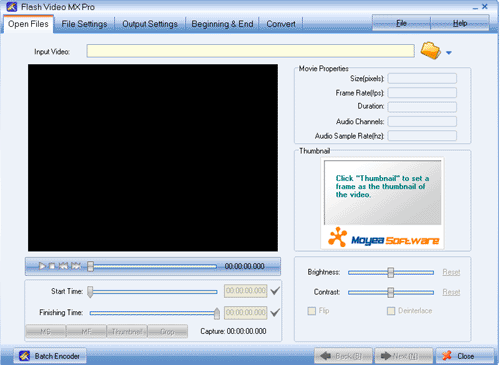
Step2. Parameter settings
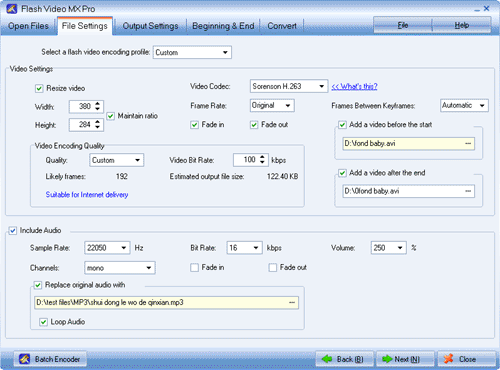
Set the video and audio parameters for the target Flash to fit your needs, such as size, frame rate, bit rate, audio channel, audio sample rate, etc. Click “Next” to continue.
Step3. Export settings
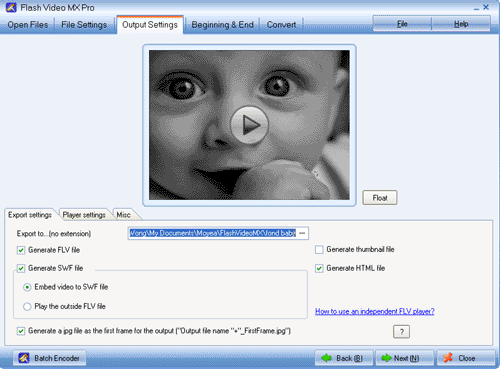
Immediately below the playing pane, there are “Export settings”, “Player settings”, and “Misc”. Let’s go through them one by one.
a. Export settings
Check the boxes “Generate FLV File, Generate SWF File and Embed video to SWF File”. Do make sure the “Embed video to SWF File” box is checked.
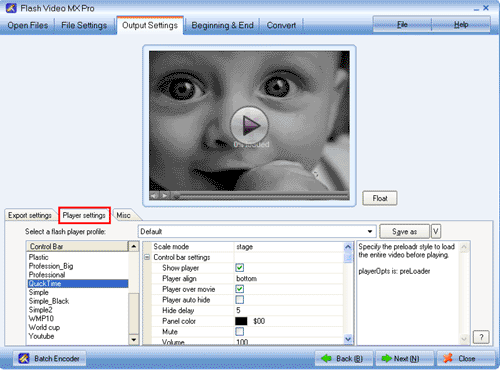
b. Player settings
Select a player style among the top to 19 control bar styles from the “Control Bar” box. In the middle box under “Control bar settings”, you can feast yourself with the control bar settings, like Show Player, Player align, Player over movie, Hide delay, Player auto hide, pane color, Mute, Volume, etc until they are in your style!
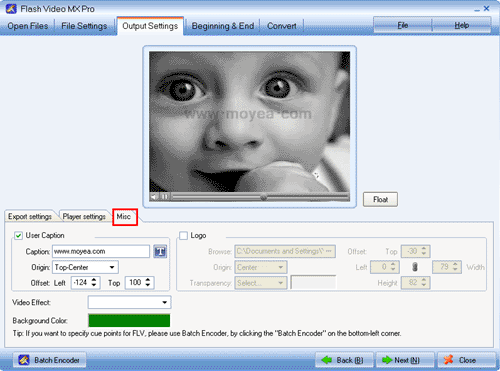
C. Misc
Add text and logo to the video to feature out your video. Check the “User Caption” box, type in the text in the “Caption” box, place it by “Origin” and “Offset” settings. Logo settings are ditto. Click “Next” to continue.
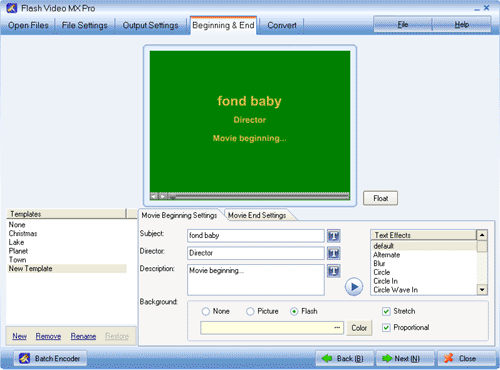
Step4. Movie beginning and end settings
This step actually can trick the video out, however if not necessary, skip and go for the conversion directly. Set the template, subject, director, and description respectively and ditto to the movie end settings. Click “Next” to continue.
Step5. Conversion
Click “Start” and ready to receive the Flash SWF file in your folder!
Tips
- Free Flash Video Downloader - Free download videos from Google
- Extract YouTube Flash Video FLV to mp3 for Creative Zen Neeon 2 MP3 player
- FLV to 3GP: Convert FLV to 3GP with Pavtube FLV to Video Converter
- FLV to Nexus One - Convert FLV files to Nexus One for playback
- Metacafe Video Downloader - Free download Flash Video from Metacafe
- MKV to HTC Desire HD - Convert MKV files to HTC Desire HD for Playback
- FLV to CD - Convert FLV to CD for Playback with FLV to CD Converter
- How to convert M2TS to AVI on PC?
- AVCHD to Adobe Premiere - Import AVCHD MTS to Adobe Premiere
- How to extract audio from F4V?