Promotion


Pavtube FLV/F4V Converter
Pavtube CUDA FLV Converter now can convert all encoded FLV/F4V videos to other video formats like MOV, MP4, MKV, WMV, AVI, DVD, VCD, SVCD, FLV (Sorenson H.263), FLV (H.264), SWF etc with ease.

As the popular video player, Windows Media Player spreads widely around the world. It can be used on Windows XP, Windows Vista, Windows 7 and Mac. No matter what operating system you are using, you can download this useful player to enjoy videos on your PC. The latest version now is version 10 which gives you more music and more choices. In other words, you can sync high-quality music, video, and photos to the latest portable devices.
Many people like this player and install it Computers. But can it play FLV video files? The answer is NO. However, most of video-sharing websites accept FLV video format as the streaming format over the Internet. Then how to convert FLV to the video format acceptable by Windows Media Player, namely, how to convert FLV to WMV? No worry. The article will do a favor for you.
How to convert FLV to WMV?
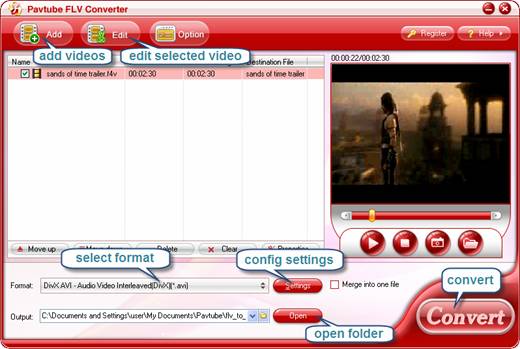
Launch it after installing the Pavtube FLV to WMV Converter. The main interface will pop up. You can see the intuitive UI.
1. Add FLV files for conversion.
Click Add FLV button to import FLV into the program for conversion. Here you can batch input multiple FLV files.
2. Specify the output format and output path.
Click the folder icon to choose the destination of the output files and hit the triangle button to select WMV from the drop-down menu as the exported video format. You have three choices: WMV7, WMV8, WMV9 which stands for three versions of WMV codec. Of course WMV9 is the latest version.
3. Edit FLV.
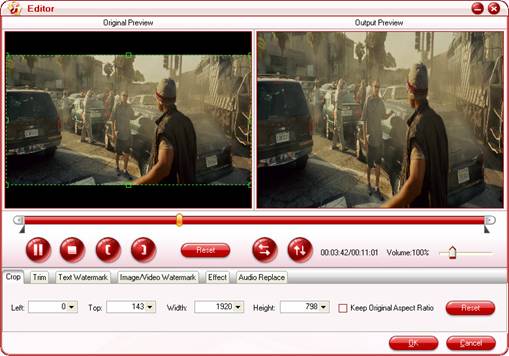
In Edit tab, you can trim and crop FLV video to the appropriate size for conversion. Moreover, it is easy to add logo or text watermark to protect your own videos in Logo and Text tab. Of course the program also allows you to adjust the volume and the brightness.
4. Configure the parameters for FLV video.
To make better video effects, adjusting the parameters is necessary like video codec, bit rate, frame rate, etc. When you change the video codec here, the Export format box will show Custom. However you still will get WMV with the chose video codec.
5. Start FLV to WMV conversion.
In Convert tab, click Start to begin encoding after all the necessary settings. Then you can find WMV files in the specified folder. Now it is time to enjoy these files with your favorite Windows Media Player.
Tips:
How do you copy online FLV off YouTube, Fox or blogTV? You can use the free Foxreal YouTube FLV Downloader which is connected with this conversion tool. It helps you to download all you favorite online FLV and owns the function to auto capture URL of the playing FLV files on the supported browsers. Just have a try.
Tips
- How to convert MTS to MPEG?
- Convert FLV to AVI video with DIVX codec to author a desired video with your favorite FLV movie!
- How to use FLV Editor Pro quickly and skillfully
- Best way to convert M2TS to MKV without quality loss
- Free download and convert online FLV to other video formats
- MOV to FLV - Convert Coutour HD videos to FLV for uploading to YouTube
- How to Convert Youtube Video FLV to MPEG for Playback on your Samsung BDP-1400 Blu-Ray DVD Disc Player?
- F4V to AVI - Convert F4V to AVI without quality loss
- Free Convert FLV with No Watermark (Trim and Merge)
- How to Convert Youtube Video FLV to MP3 for Playback on i-Mate SPJAS Mobile Phone?